> ## Documentation Index
> Fetch the complete documentation index at: https://docs.lincal.app/llms.txt
> Use this file to discover all available pages before exploring further.
# Connecting Linear
> LinCal does not need a separate account. You log in with your Linear account
Just sign in with your Linear account. LinCal will automatically connect your workspace so you can start planning issues in calendar view.
## Connect your account
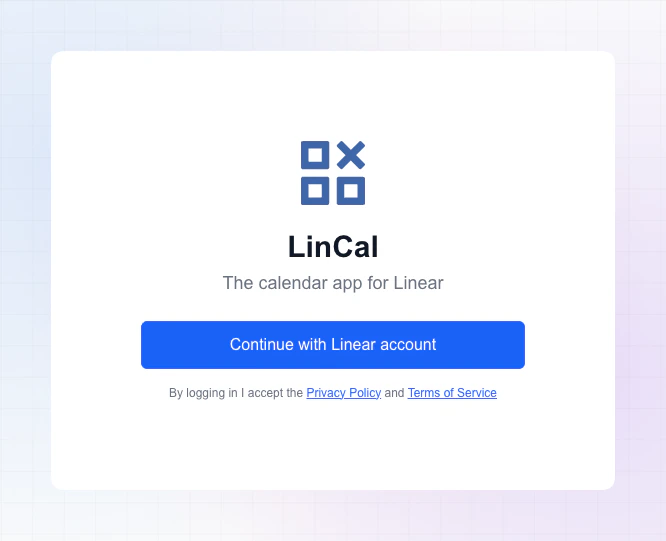 1. Browse to the log in page /login
2. Click **Sign in with Linear**.
3. Complete the Linear sign-in flow.
4. You will get redirected to LinCal and can start using your calendar.
## Troubleshooting
1. Browse to the log in page /login
2. Click **Sign in with Linear**.
3. Complete the Linear sign-in flow.
4. You will get redirected to LinCal and can start using your calendar.
## Troubleshooting
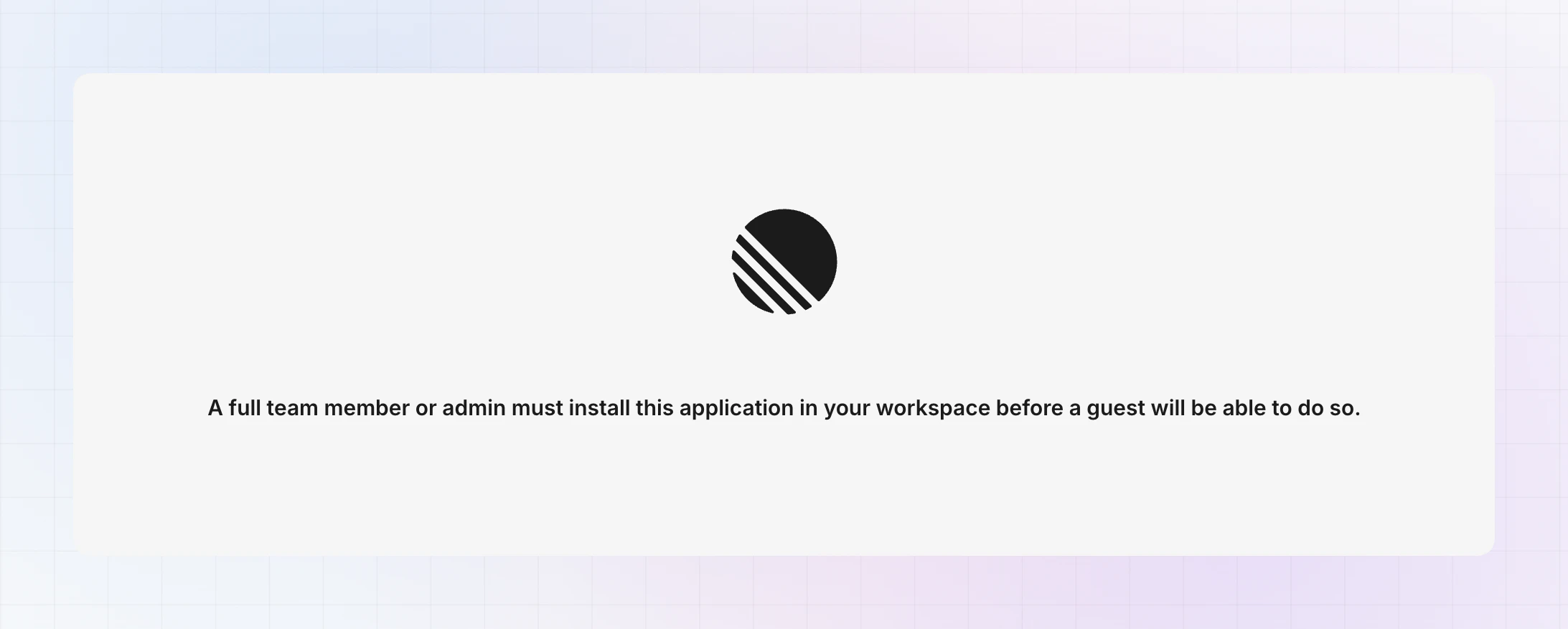 If you see a **"full team member or admin must install this app"** message, you are either a guest to a Linear workspace or an admin must approve it.
Contact your Linear workspace admin to grant access.
If you see a **"full team member or admin must install this app"** message, you are either a guest to a Linear workspace or an admin must approve it.
Contact your Linear workspace admin to grant access.