> ## Documentation Index
> Fetch the complete documentation index at: https://docs.lincal.app/llms.txt
> Use this file to discover all available pages before exploring further.
# Calendar View
> Use LinCal’s calendar in month or week view, switch views from Display or the keyboard, and move through time with shortcuts.
LinCal shows your Linear issues by due date on a calendar. You can use **month view** for a dense overview or **week view** for larger cards and more detail per task.
## Calendar layout
 ## Month view
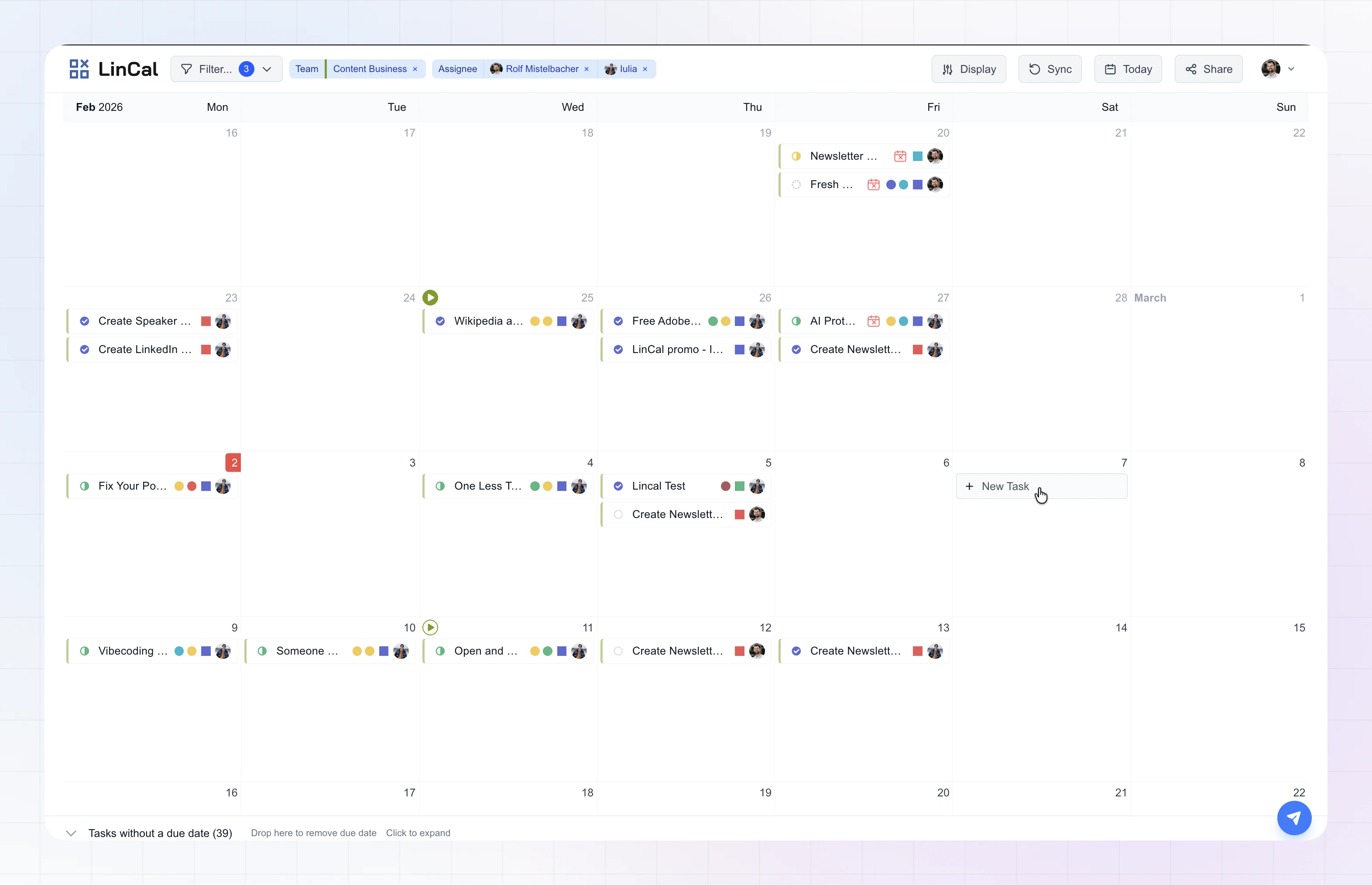
Month view stacks calendar **rows vertically** so you can scan many weeks at once.
* **Scroll** (or trackpad) to move **up and down** through the calendar.
* Each day shows up to **four** issues directly. If there are more, use **“x more”** to open the full list for that day.
* The header’s **month label** updates as you move through the calendar.
## Week view
## Month view
Month view stacks calendar **rows vertically** so you can scan many weeks at once.
* **Scroll** (or trackpad) to move **up and down** through the calendar.
* Each day shows up to **four** issues directly. If there are more, use **“x more”** to open the full list for that day.
* The header’s **month label** updates as you move through the calendar.
## Week view
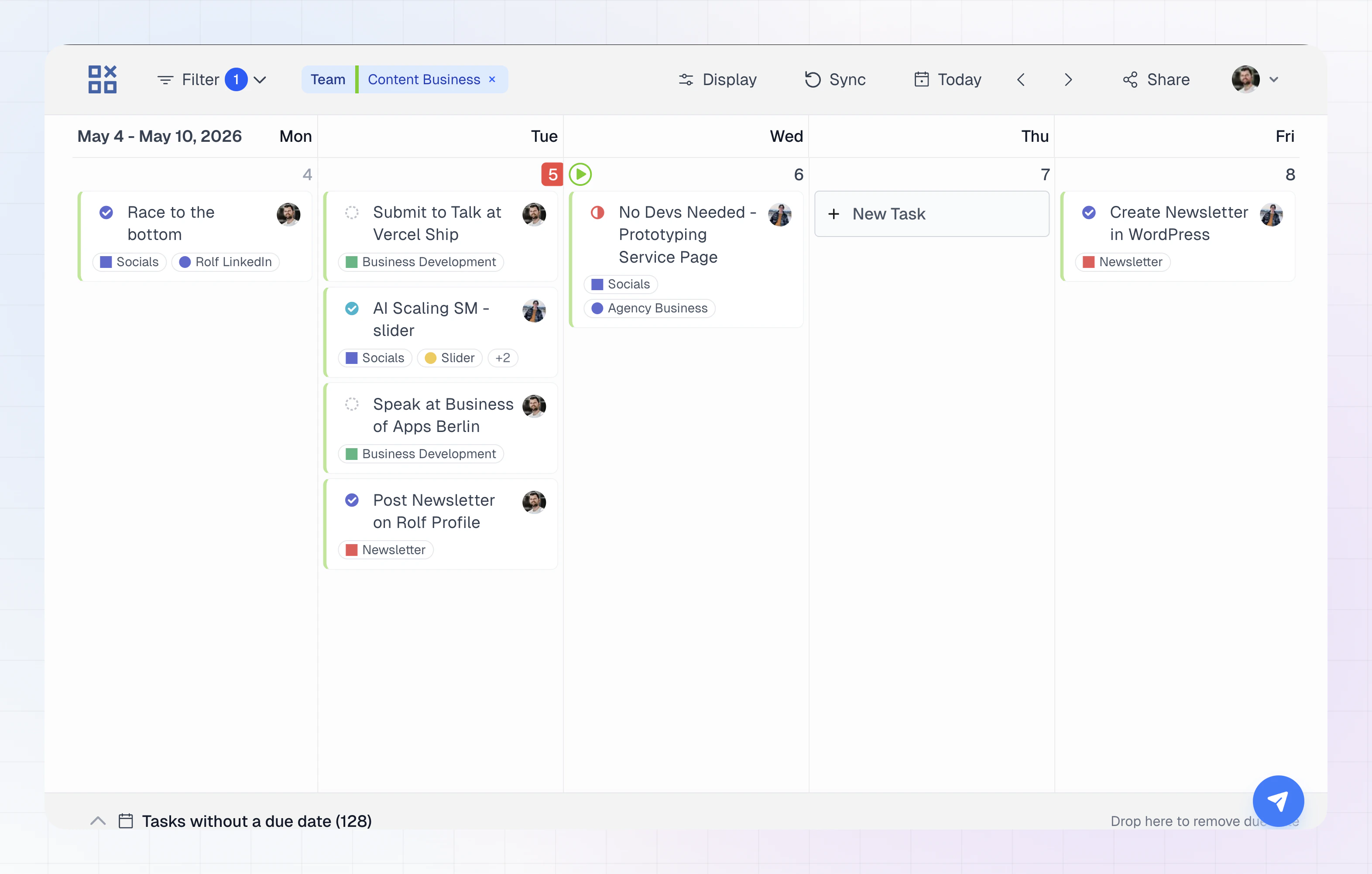 Week view shows **one week at a time** in a wide layout.
* **Scroll horizontally** (or use the toolbar arrows) to move to the previous or next week.
* **All** issues for a day are listed in the column—there is no four-issue cap.
* Task cards are **taller** and show **more information in text** where month view uses compact icons or dots—for example **project name** and **label names** as chips (subject to your Display settings).
* **Overdue** issues show a clearer on-card label in week view (for example how long they’re overdue).
## Switch between month and week
**From the UI**
1. Open **Display** in the top bar.
2. Under **Calendar view**, choose **Month** or **Week**.
**From the keyboard**
* **M** — month view
* **W** — week view
## Move through the calendar
**Today**
* Click **Today** in the toolbar, or press **T**.
**Toolbar**
* In **month view**, the arrows move the calendar **one screen** vertically (same idea as paging up/down).
* In **week view**, the arrows move **one week** left or right.
**Arrow keys**
| View | Previous | Next |
| ----- | -------- | ---- |
| Month | ↑ | ↓ |
| Week | ← | → |
## Top bar reminders
Alongside **Display**, the top bar includes **Filter**, **Sync**, **Today**, **Share**, and your account menu—so you can narrow issues, refresh from Linear, jump to this week, or share your current setup.
## Task cards and Display options
Week view shows **one week at a time** in a wide layout.
* **Scroll horizontally** (or use the toolbar arrows) to move to the previous or next week.
* **All** issues for a day are listed in the column—there is no four-issue cap.
* Task cards are **taller** and show **more information in text** where month view uses compact icons or dots—for example **project name** and **label names** as chips (subject to your Display settings).
* **Overdue** issues show a clearer on-card label in week view (for example how long they’re overdue).
## Switch between month and week
**From the UI**
1. Open **Display** in the top bar.
2. Under **Calendar view**, choose **Month** or **Week**.
**From the keyboard**
* **M** — month view
* **W** — week view
## Move through the calendar
**Today**
* Click **Today** in the toolbar, or press **T**.
**Toolbar**
* In **month view**, the arrows move the calendar **one screen** vertically (same idea as paging up/down).
* In **week view**, the arrows move **one week** left or right.
**Arrow keys**
| View | Previous | Next |
| ----- | -------- | ---- |
| Month | ↑ | ↓ |
| Week | ← | → |
## Top bar reminders
Alongside **Display**, the top bar includes **Filter**, **Sync**, **Today**, **Share**, and your account menu—so you can narrow issues, refresh from Linear, jump to this week, or share your current setup.
## Task cards and Display options
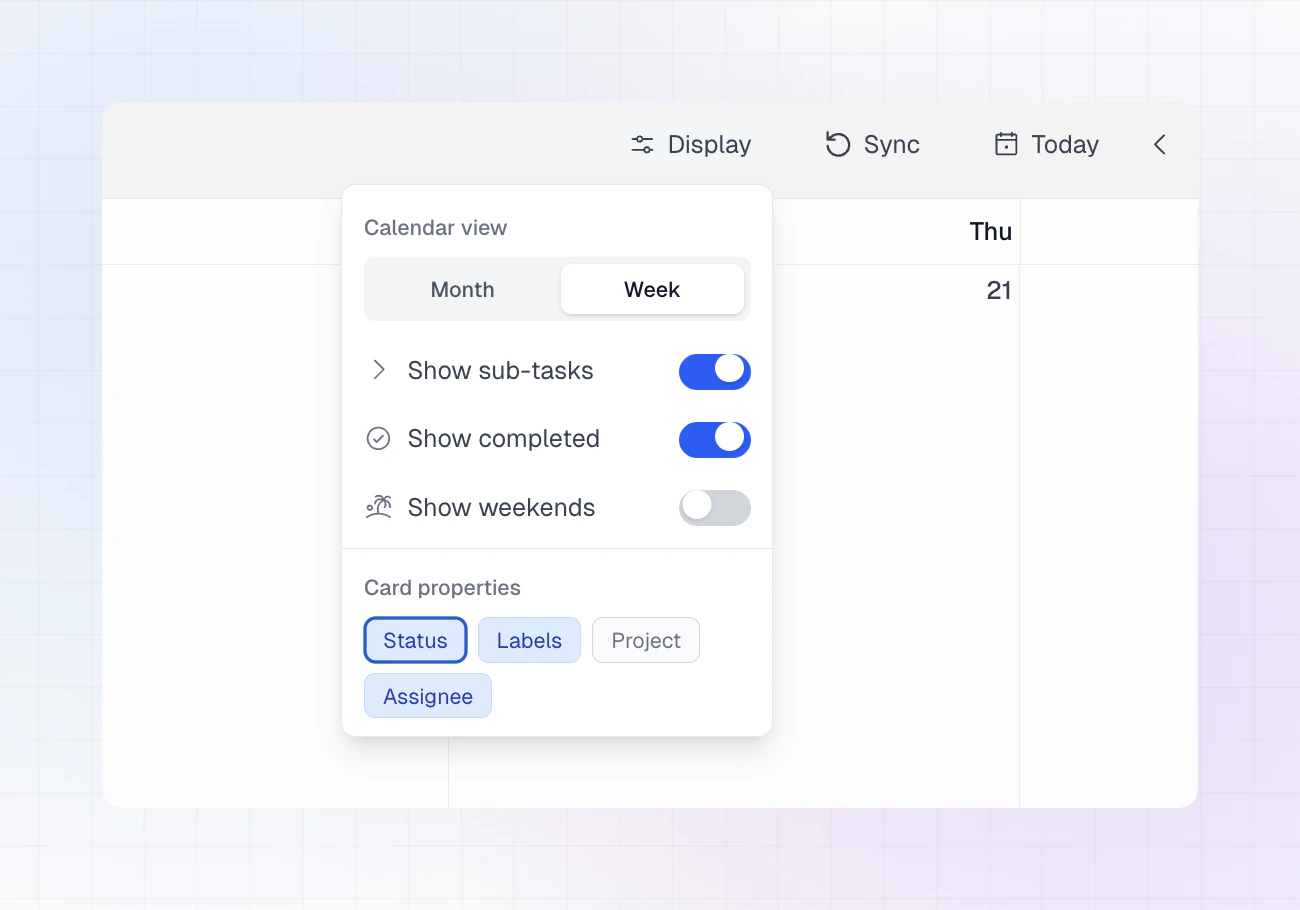 What you see on each card depends on **Display**:
* toggles such as **status**, **labels**, **project**, and **assignee** apply in **both** views;
* **month view** keeps cards compact (often **icons** or small dots);
* **week view** uses more **written detail** on the card when those options are on.
Click a task card to **open it in LinCal** for quick edits (or use your usual shortcut to open the issue in Linear in a new tab, if you use that flow). **Overdue** issues are highlighted on the card.
## Issues without a due date
The **no due date** section at the bottom lists issues that don’t have a due date yet, so you can still see and work with them from the calendar screen.
What you see on each card depends on **Display**:
* toggles such as **status**, **labels**, **project**, and **assignee** apply in **both** views;
* **month view** keeps cards compact (often **icons** or small dots);
* **week view** uses more **written detail** on the card when those options are on.
Click a task card to **open it in LinCal** for quick edits (or use your usual shortcut to open the issue in Linear in a new tab, if you use that flow). **Overdue** issues are highlighted on the card.
## Issues without a due date
The **no due date** section at the bottom lists issues that don’t have a due date yet, so you can still see and work with them from the calendar screen.