> ## Documentation Index
> Fetch the complete documentation index at: https://docs.lincal.app/llms.txt
> Use this file to discover all available pages before exploring further.
# Creating Issues
> Create new Linear tasks directly from within LinCal.
## Create a task from a date
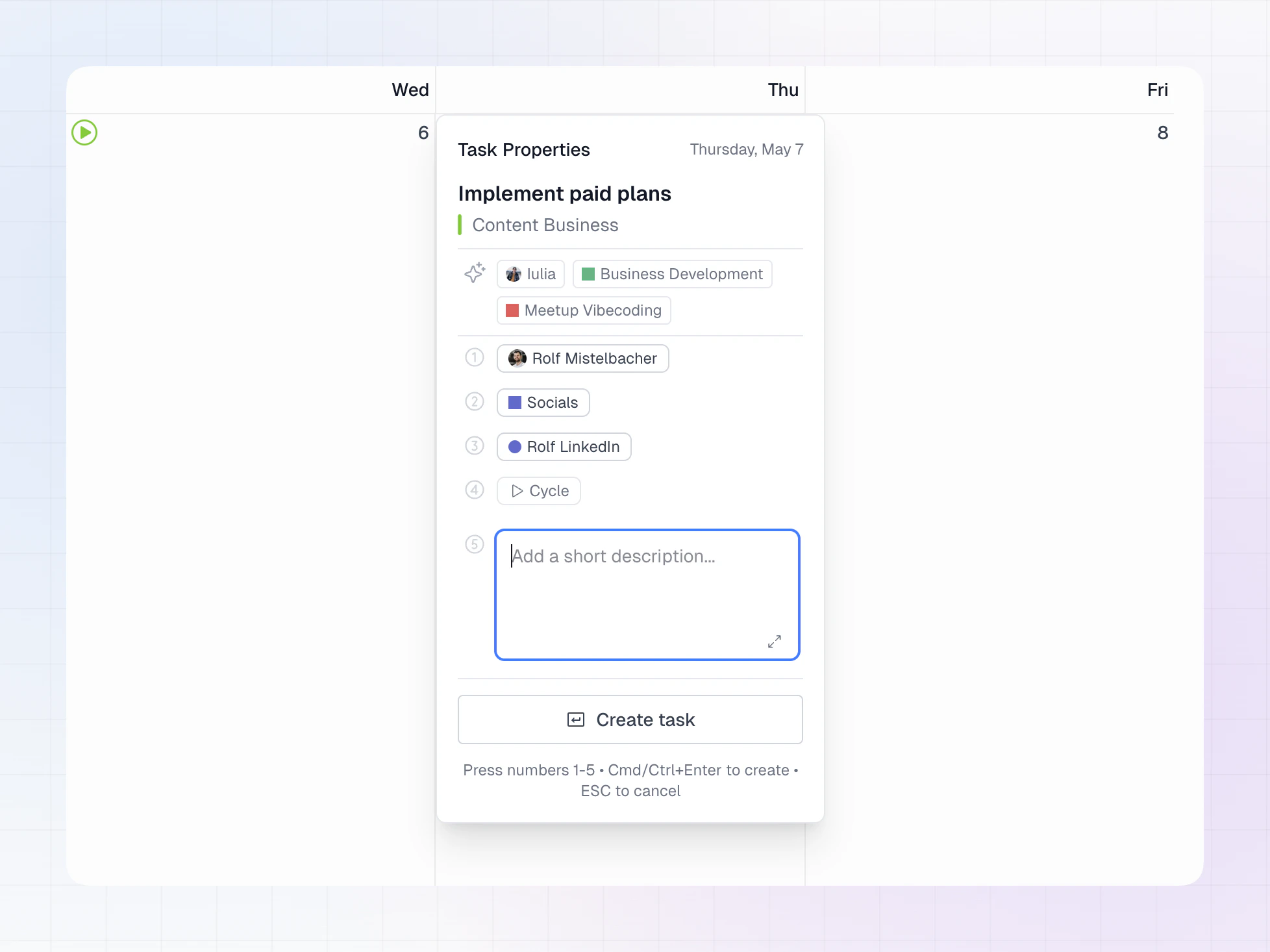 1. Hover a day cell and click **New Task**.
2. Enter the task title and press **Enter**.
3. Select a team if LinCal asks you to (this step may be skipped when your filters already imply a single team).
4. On the **Task Properties** step, optionally set:
* Assignee
* Project
* Labels
* Cycle
5. Optionally add a **description** (short field in the panel, or expand it for more room while you write).
6. Use **Create task**, or **Cmd+Enter** (Mac) / **Ctrl+Enter** (Windows/Linux) to create. **Esc** cancels from the title step.
### Notes
* Tasks are created in Linear and appear on the date you picked.
* If your filters already narrow to a single team, LinCal may preselect that team and move you past team selection after the title.
## Edit a task
1. **Left-click** a task card on the calendar to open **Task Properties** in LinCal.
2. To open the issue in **Linear** in a new tab instead, **Cmd-click** (Mac) or **Ctrl-click** (Windows/Linux) the card.
3. Change title, assignee, project, labels, or cycle. Updates **sync to Linear automatically** (there is no separate **Save** step).
4. Use **Open in Linear** in the panel (or **Cmd/Ctrl+Enter** when suitable) when you need the full Linear issue—including long descriptions, attachments, comments, etc.
5. **Esc** closes the panel.
### Notes
* This flow is for quick property updates from the calendar.
* Changes sync back to Linear.
* Click the task identifer to copy the Linear task link
## Change status from the task card
1. Hover a day cell and click **New Task**.
2. Enter the task title and press **Enter**.
3. Select a team if LinCal asks you to (this step may be skipped when your filters already imply a single team).
4. On the **Task Properties** step, optionally set:
* Assignee
* Project
* Labels
* Cycle
5. Optionally add a **description** (short field in the panel, or expand it for more room while you write).
6. Use **Create task**, or **Cmd+Enter** (Mac) / **Ctrl+Enter** (Windows/Linux) to create. **Esc** cancels from the title step.
### Notes
* Tasks are created in Linear and appear on the date you picked.
* If your filters already narrow to a single team, LinCal may preselect that team and move you past team selection after the title.
## Edit a task
1. **Left-click** a task card on the calendar to open **Task Properties** in LinCal.
2. To open the issue in **Linear** in a new tab instead, **Cmd-click** (Mac) or **Ctrl-click** (Windows/Linux) the card.
3. Change title, assignee, project, labels, or cycle. Updates **sync to Linear automatically** (there is no separate **Save** step).
4. Use **Open in Linear** in the panel (or **Cmd/Ctrl+Enter** when suitable) when you need the full Linear issue—including long descriptions, attachments, comments, etc.
5. **Esc** closes the panel.
### Notes
* This flow is for quick property updates from the calendar.
* Changes sync back to Linear.
* Click the task identifer to copy the Linear task link
## Change status from the task card
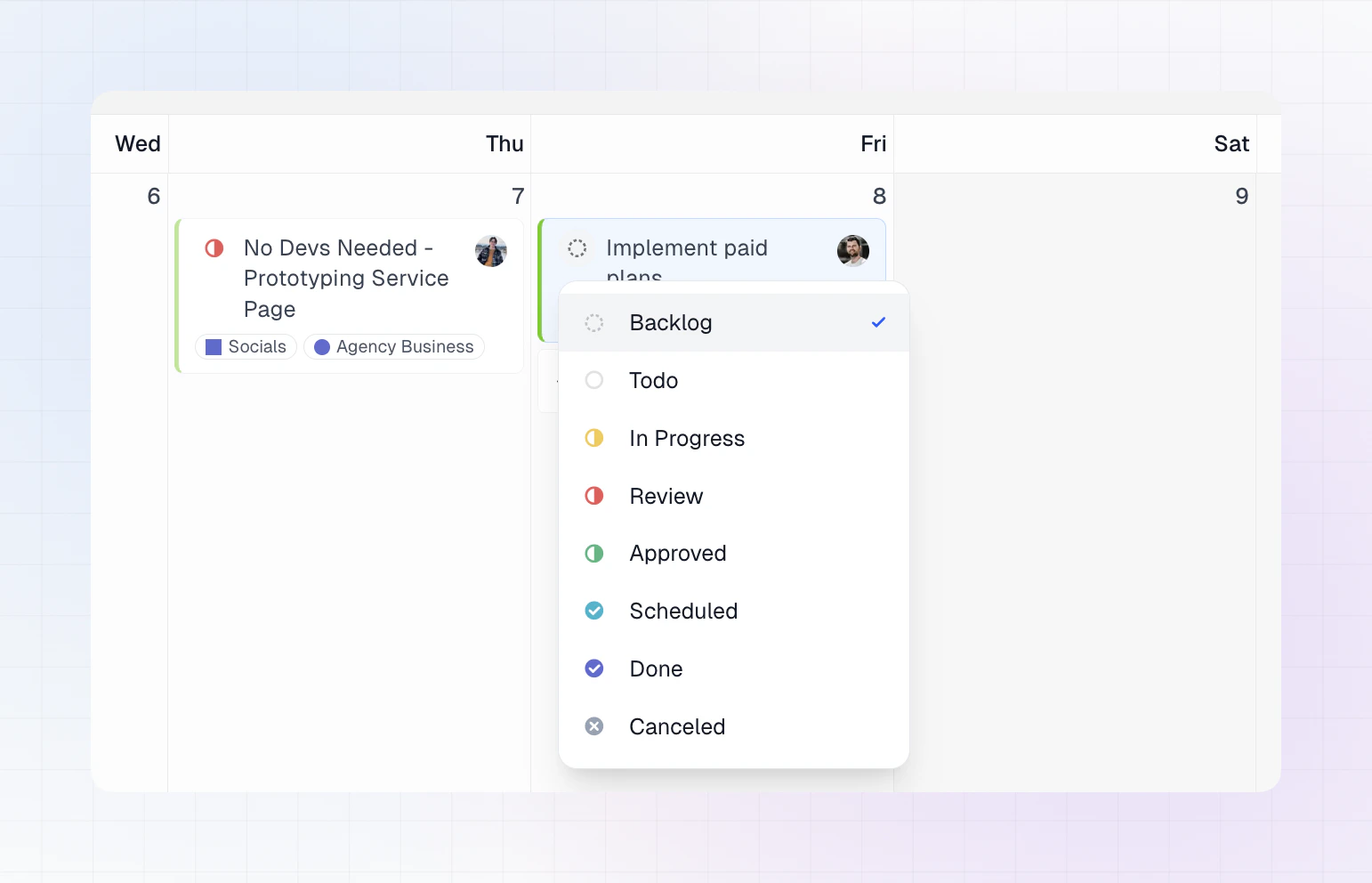 1. On the task card, click the **status** control on the left.
2. Pick the new status from the menu.
3. The card updates right away.
### Notes
* Available statuses come from the task’s team workflow in Linear.
* This is the fastest way to move work between states from calendar view.
1. On the task card, click the **status** control on the left.
2. Pick the new status from the menu.
3. The card updates right away.
### Notes
* Available statuses come from the task’s team workflow in Linear.
* This is the fastest way to move work between states from calendar view.