

Create a task from a date
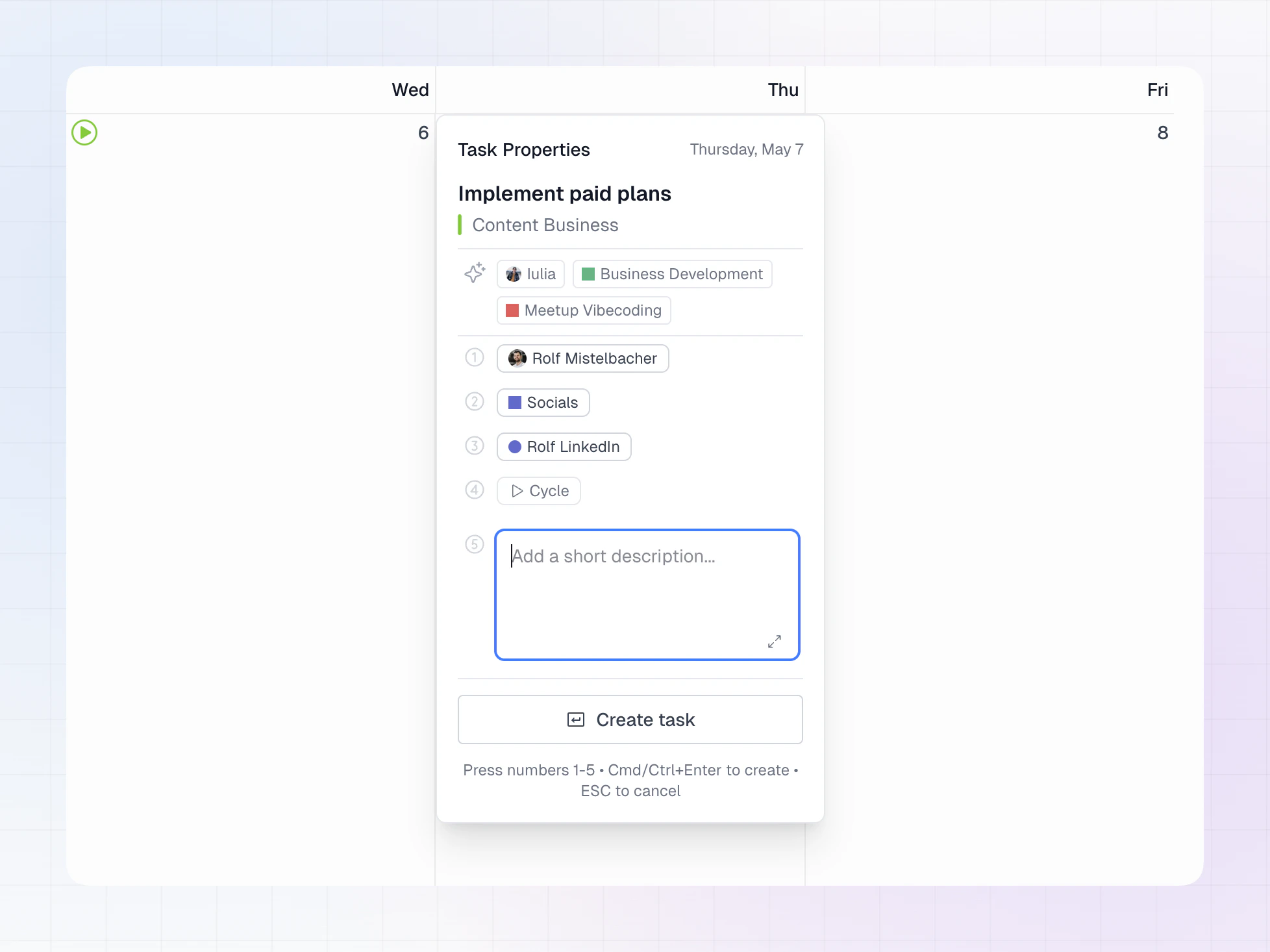
- Hover a day cell and click New Task.
- Enter the task title and press Enter.
- Select a team if LinCal asks you to (this step may be skipped when your filters already imply a single team).
- On the Task Properties step, optionally set:
- Assignee
- Project
- Labels
- Cycle
- Optionally add a description (short field in the panel, or expand it for more room while you write).
- Use Create task, or Cmd+Enter (Mac) / Ctrl+Enter (Windows/Linux) to create. Esc cancels from the title step.
Notes
- Tasks are created in Linear and appear on the date you picked.
- If your filters already narrow to a single team, LinCal may preselect that team and move you past team selection after the title.
Edit a task
- Left-click a task card on the calendar to open Task Properties in LinCal.
- To open the issue in Linear in a new tab instead, Cmd-click (Mac) or Ctrl-click (Windows/Linux) the card.
- Change title, assignee, project, labels, or cycle. Updates sync to Linear automatically (there is no separate Save step).
- Use Open in Linear in the panel (or Cmd/Ctrl+Enter when suitable) when you need the full Linear issue—including long descriptions, attachments, comments, etc.
- Esc closes the panel.
Notes
- This flow is for quick property updates from the calendar.
- Changes sync back to Linear.
- Click the task identifer to copy the Linear task link
Change status from the task card
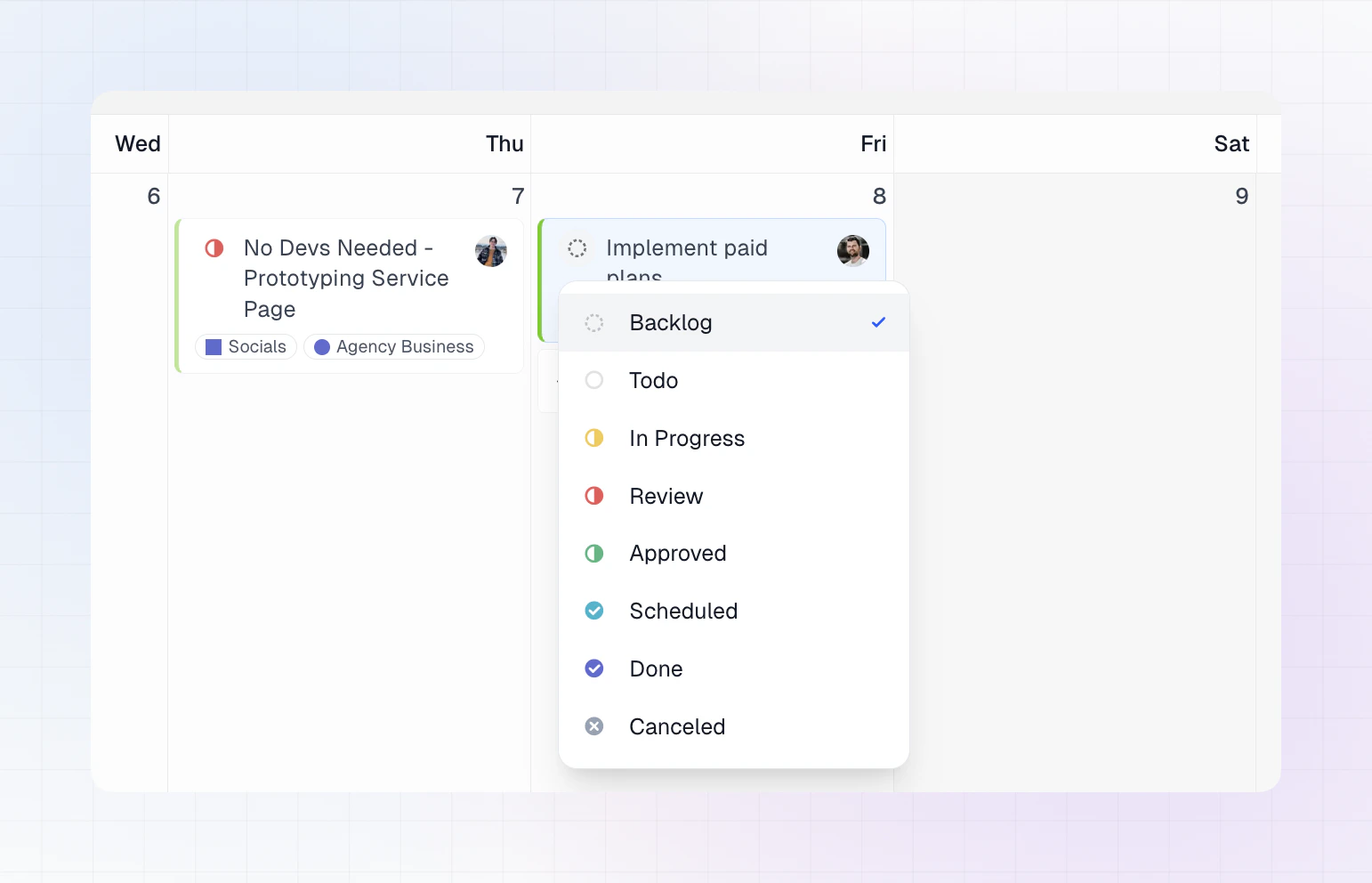
- On the task card, click the status control on the left.
- Pick the new status from the menu.
- The card updates right away.
Notes
- Available statuses come from the task’s team workflow in Linear.
- This is the fastest way to move work between states from calendar view.