Share a filtered calendar view with your team via a link. Anyone who opens the link sees the same filters and display options you configured — and the calendar stays up to date as issues change in Linear.

How to Share

  1. Set up your filters (teams, projects, assignees, labels, cycles, or statuses).
  2. Adjust display options if needed (weekends, sub-tasks, completed, card properties).
  3. Click Share in the top-right of the display menu.
  4. Click Copy Link and paste it wherever you want — Slack, Linear project descriptions, Notion, team wikis, etc.
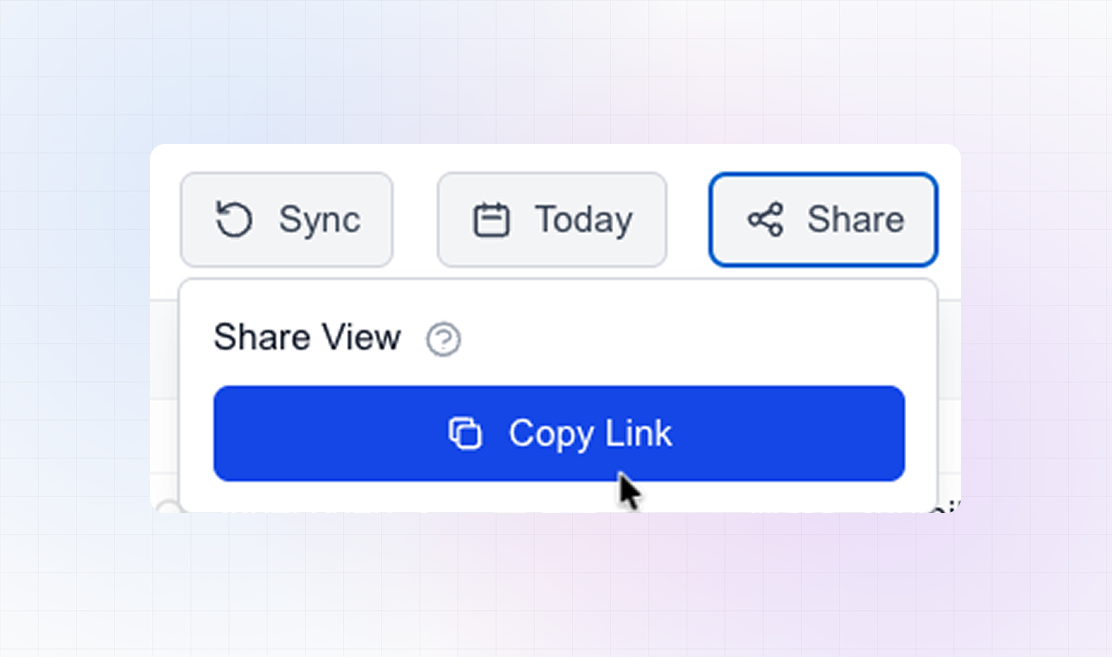
LinCal Share Linear Calendar

What Gets Shared

The link includes your filters and display options:
  • Filters: Teams, projects, statuses, assignees, cycles, labels (any combination).
  • Display options: Show weekends, show sub-tasks, show completed, and which properties appear on cards (status, labels, project, assignee).
Recipients see the same view you configured.

Important Details

Recipients need Linear access. This is not a public link. Anyone who opens it must be signed in to LinCal with access to the same Linear workspace. Your data stays in Linear. The link stays live. It is not a snapshot. The calendar reflects current data from Linear whenever someone opens it. Works after login. If someone opens the link while logged out, they’ll be prompted to sign in. After signing in, the shared view is applied automatically.

Use Cases

For examples of how teams use share links — team calendars, cycle views, project stakeholder views, and content calendars — see A Shareable Calendar View for Linear App on our blog.