

Plans & billing
LinCal subscriptions are billed per Linear workspace. One subscription covers your whole workspace at a flat rate — not per-seat. You’ll subscribe or manage payment inside LinCal.Overview
Who needs a LinCal subscription?
Your workspace needs an active LinCal subscription when all of the following apply:- Your workspace is on a paid Linear plan
- At least two people use LinCal for that workspace
Trial
The first time your workspace becomes subject to the rules above, LinCal starts a trial (by default 7 days from when the trial is recorded for that workspace). During the trial you have full access. When the trial ends without an active subscription, access to the calendar is blocked until the workspace is upgraded.Team plan & pricing
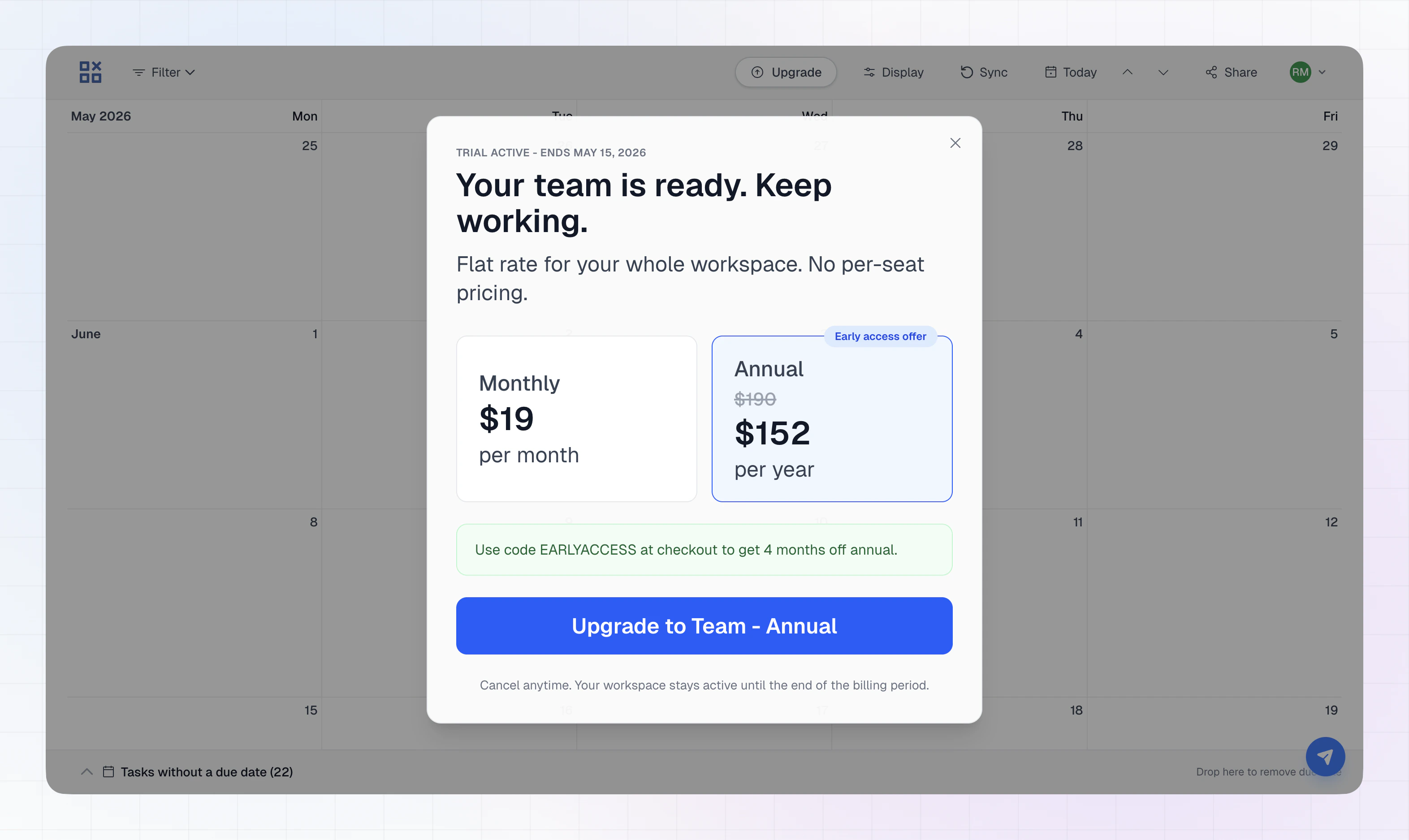
- Monthly and annual billing intervals are available; pick the interval in the upgrade flow.
- Authoritative amounts (including tax and currency as applicable) are always shown at checkout when you subscribe in the app.
How to upgrade
- Sign in to LinCal with your Linear account.
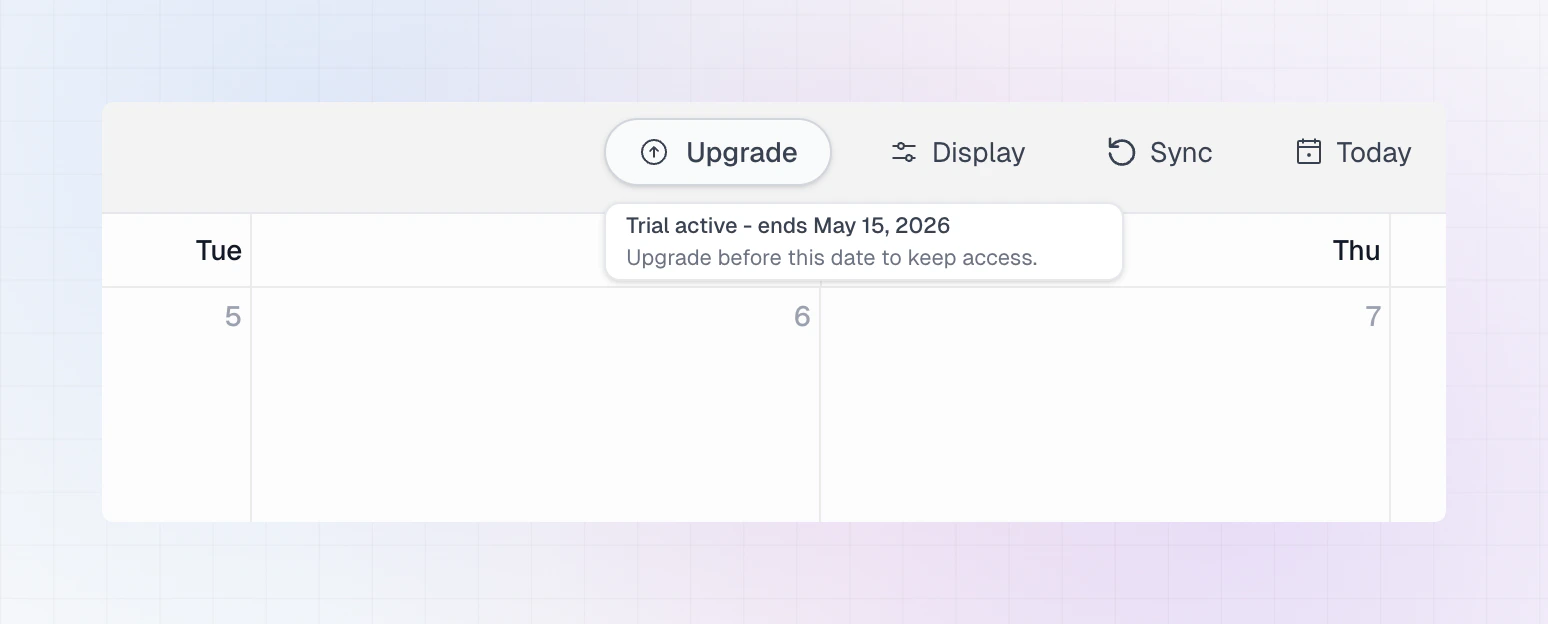
- When your workspace requires a subscription, follow the in-app upgrade flow.
- Complete payment on the checkout page. After a successful purchase, your workspace should have access again (you may need to refresh or return from checkout as prompted).
Billing owner
Payments and many billing-management actions are tied to a single billing owner for the workspace:- The first user doing the upgrade is turned into the billing owner
- The billing owner can Manage billing via a link in the user menu.
- Other workspace members should ask the billing owner to subscribe or update payment.
Managing your subscription
After you’re subscribed: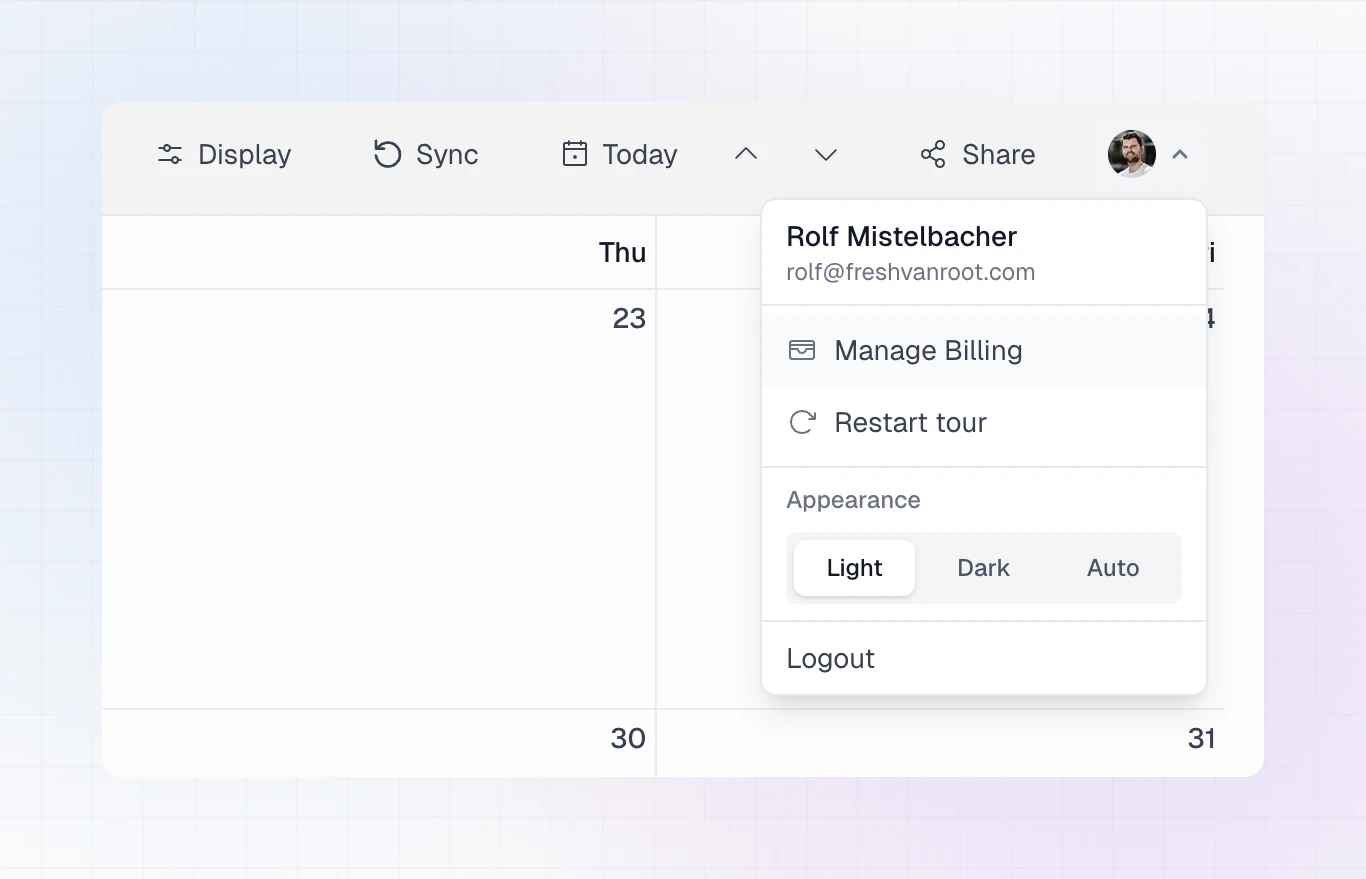
- Use Manage billing from the account menu in LinCal to open the customer portal.
- There you can typically update payment details, view invoices, or cancel the subscription.