

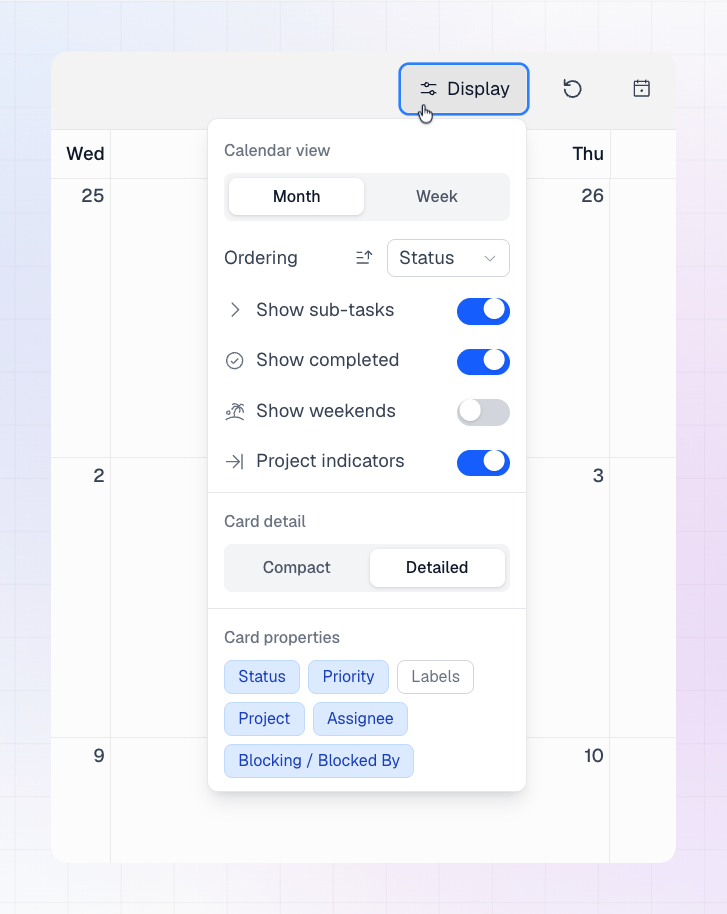
Calendar view
Choose Month or Week. You can also press M or W on your keyboard. Month view is compact and shows many weeks at once. Week view gives you larger cards with more detail. See Calendar View for how each view works.Ordering
Ordering controls how tasks are sorted inside each day.- Open Display.
- Next to Ordering, pick what to sort by:
- Status
- Updated
- Priority
- Click the arrow icon next to it to switch between ascending and descending.
Card detail
Card detail switches how much information month view shows on each card:- Compact (default): small cards with icons and dots, so you can see more tasks at a glance.
- Detailed: larger cards with more written information.
Card properties
Card properties decide what appears on each task card. Click a property to turn it on or off.Blocking and blocked by
When a task has dependencies in Linear, its card shows an icon. On detailed cards it also shows how many related tasks there are. Hover the icon to see the list of related tasks.Project indicators
Turn on Project indicators to show your Linear projects on the calendar as start and target pills. Turn it off if you want a calendar with only tasks.Show or hide tasks
These toggles control which tasks appear on the calendar:Good to know
- Display options are saved, so your calendar looks the same the next time you open it.
- When you share a calendar view, the link includes your display options.
- Display options change only how LinCal looks. They never edit tasks in Linear.