

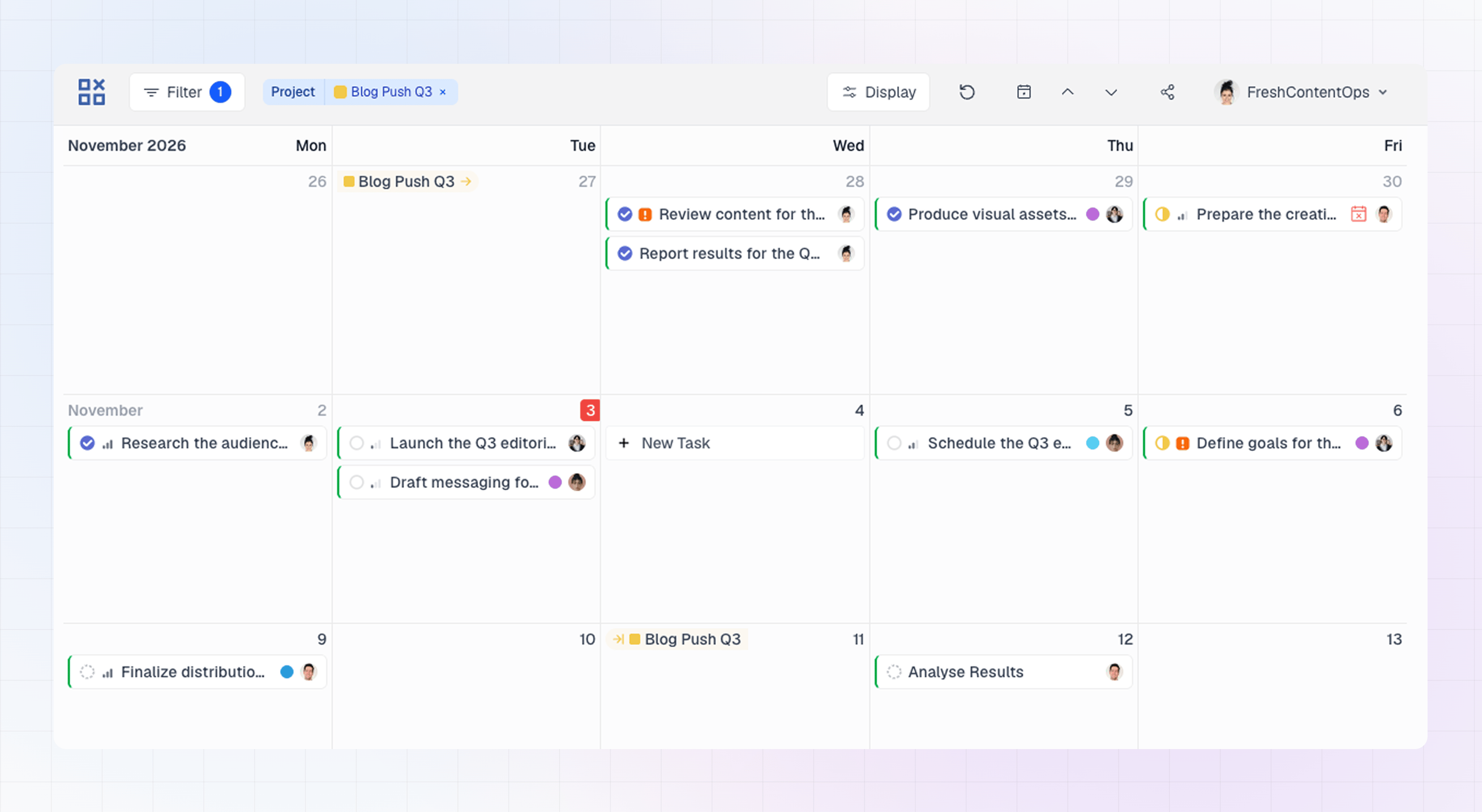
Start and target pills
A project can have up to two pills:- Start pill: appears on the project’s start date. It has an arrow after the project name.
- Target pill: appears on the project’s target date. It has a line-and-arrow icon before the project name.
- Single pill: if a project starts and ends on the same day, you see one pill instead of two.
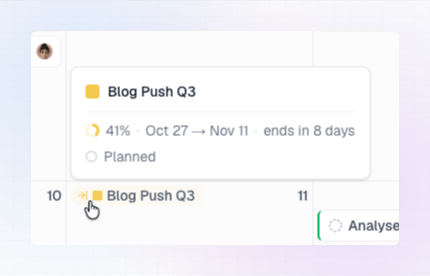
Hover for details
Hover a pill to see:- The project name
- Progress as a percentage
- The date range, from start date to target date
- How far away the date is, for example “starts in 3 days” or “ended 2 days ago”
- The project status
- The project lead, if there is one
Open a project in Linear
Click a pill, or the project name in the hover card, to open the project in Linear in a new tab.Which projects appear
Project pills are on by default, but they only appear once you’ve narrowed the calendar:- Select a team in the filter, and pills appear for that team’s projects.
- Select specific projects in the Projects filter, and pills appear for those projects, even if they belong to other teams.
- It has no start date and no target date.
- Its status is Canceled.
Projects in the filter list
The projects you can pick in the Projects filter depend on your other filters:- No filters: projects from your own teams.
- A team selected: projects from that team.
- An assignee selected, but no team: projects from all teams in the workspace.